Graphic Design & Illustration school
Certificate in Graphic Design Using Canva
Design confidently, even if you never trained as a designer.
This Canva course teaches real design principles once, then puts them to work across roughly twenty deliverables, so you stop reaching for templates and start making decisions.
Overview
What this Canva course covers
Most Canva tutorials show you where the buttons are, which is the easy part. This Canva course teaches the design principles first, hierarchy, spacing, alignment and color used on purpose, then spends the rest of its run applying them to about twenty real deliverables.
Business documents, marketing material, social graphics and animated content, annual reports, newsletters, landing pages, classroom resources, planners, custom gifts and product mockups. Every module finishes something, because the gap between knowing what hierarchy is and producing a decent annual report is closed by repetition. You end up able to sit down with a blank canvas and a real brief and produce something that looks deliberate, at the right size, exported correctly, in an evening.
Outcomes
What you will be able to do
Requirements
Course requirements
- A browser and a Canva account. Nothing to install, and nothing to buy before you start.
- No design training. The course assumes none and teaches the principles from scratch.
- The free tier is enough to follow along, though some elements may come out watermarked outside Pro.
- A couple of your own photos, and ideally something real you need to make, because the format modules move much faster with a genuine brief.
Syllabus
Graphic Design Using Canva curriculum
158 recorded video lessons you follow along in the software, at your own pace. Quizzes through each module check what stuck, and a 20-question final exam earns your certificate.
1Canva Course Orientation and Quick Start Skills6 lessons · 5 videos · 2 quizzes
- Course Overview and Learning Expectations (video lesson, 2 minutes 4 seconds)
- Canva Editor Speed Tour (video lesson, 7 minutes 24 seconds)
- Applying Core Design Principles (video lesson, 15 minutes 56 seconds)Quiz
- Creating Your First Social Media Post (reading)
- Getting Started with Canva AI (video lesson, 12 minutes 28 seconds)
- Repurposing Designs Quickly (video lesson, 11 minutes 12 seconds)Quiz
2Core Graphic Design Principles5 lessons · 5 videos · 2 quizzes
- Understanding Visual Hierarchy and Contrast (video lesson, 15 minutes 11 seconds)
- Applying Color in Design (video lesson, 9 minutes 54 seconds)
- Typography Fundamentals (video lesson, 17 minutes 24 seconds)
- Layout and Alignment Principles (video lesson, 10 minutes 37 seconds)Quiz
- Design Foundations Practice Lab (video lesson, 1 minute 29 seconds)Quiz
3Canva Elements and Visual Assets4 lessons · 4 videos · 2 quizzes
- Working with Shapes (video lesson, 8 minutes 14 seconds)
- Using Photo Tools and Frames (video lesson, 13 minutes 22 seconds)
- Social Media Post Design Lab Part 1 (video lesson, 14 minutes 39 seconds)Quiz
- Social Media Post Design Lab Part 2 (video lesson, 7 minutes 11 seconds)Quiz
4AI Design Tools in Canva5 lessons · 5 videos · 2 quizzes
- Using Magic Design (video lesson, 10 minutes 28 seconds)
- Using Magic Write (video lesson, 14 minutes 11 seconds)
- Creating AI Images and Videos (video lesson, 16 minutes 27 seconds)
- Using Canva Translate (video lesson, 5 minutes 13 seconds)Quiz
- Canva AI Practice Lab (video lesson, 11 minutes 59 seconds)Quiz
5Canva Video Editing Fundamentals5 lessons · 5 videos · 2 quizzes
- Uploading Media and Video Basics (video lesson, 11 minutes 16 seconds)
- Working with Audio and Mixing (video lesson, 15 minutes 2 seconds)
- Adding Captions to Videos (video lesson, 7 minutes 35 seconds)Quiz
- Applying Video Effects and Overlays (video lesson, 12 minutes 30 seconds)
- Canva Video Editing Practice Lab (video lesson, 7 minutes 36 seconds)Quiz
6Asset Management and Mockup Design4 lessons · 4 videos · quiz
- Organizing Design Assets (video lesson, 10 minutes 10 seconds)
- Adding Text and Color to Assets (video lesson, 12 minutes 45 seconds)
- Creating Mockups in Canva (video lesson, 13 minutes 34 seconds)
- Asset and Mockup Design Lab (video lesson, 51 seconds)Quiz
7Social Media Campaign Design Project3 lessons · 3 videos · quiz
- Planning a Social Media Campaign (video lesson, 11 minutes 5 seconds)
- Creating Social Media Campaign Assets (video lesson, 19 minutes 45 seconds)
- Preparing Video Assets and Final Handoff (video lesson, 11 minutes 24 seconds)Quiz
8Brand Systems and Team Collaboration4 lessons · 4 videos · 2 quizzes
- Setting Up a Canva Brand Kit (video lesson, 15 minutes 51 seconds)
- Creating Branded Templates (video lesson, 5 minutes 37 seconds)Quiz
- Working with Teams in Canva (video lesson, 17 minutes 35 seconds)
- Branding and Collaboration Practice Lab (video lesson, 1 minute 3 seconds)Quiz
9Canva Tools for Documents, Websites and Presentations5 lessons · 5 videos · 2 quizzes
- Creating Presentations in Canva (video lesson, 18 minutes 38 seconds)
- Creating Documents with AI Assistance (video lesson, 6 minutes 30 seconds)Quiz
- Working with Canva Whiteboards (video lesson, 13 minutes 5 seconds)
- Creating Websites in Canva (video lesson, 15 minutes 22 seconds)
- Canva Advanced Tools Practice Lab (video lesson, 1 minute 17 seconds)Quiz
10Advanced Canva Workflows and Exporting4 lessons · 3 videos · quiz
- Using Bulk Create (video lesson, 9 minutes 50 seconds)
- Working with Canva Apps (video lesson, 13 minutes 45 seconds)
- Exporting Designs for Different Uses (reading)
- Capstone Project and Course Conclusion (video lesson, 2 minutes 12 seconds)Quiz
11Bonus Canva Design Projects2 lessons · 2 videos · quiz
- Introduction to Bonus Projects (video lesson, 25 seconds)
- Creating Brand Identity Assets (video lesson, 13 minutes 39 seconds)Quiz
12Business Document and Template Design19 lessons · 19 videos · 4 quizzes
- Business Presentation Template Part 1 (video lesson, 29 minutes 43 seconds)
- Business Presentation Template Part 2 (video lesson, 15 minutes 31 seconds)
- Business Presentation Template Part 3 (video lesson, 22 minutes 12 seconds)
- Business Presentation Template Part 4 (video lesson, 47 minutes 21 seconds)
- Business Presentation Template Part 5 (video lesson, 34 minutes 51 seconds)Quiz
- Animating a Business Presentation (video lesson, 12 minutes 50 seconds)
- Adding Text Links to a Business Presentation (video lesson, 1 minute 45 seconds)
- Business Proposal Template Part 1 (video lesson, 24 minutes 15 seconds)Quiz
- Business Proposal Template Part 2 (video lesson, 28 minutes 57 seconds)
- Business Proposal Template Part 3 (video lesson, 32 minutes 36 seconds)
- Business Proposal Template Part 4 (video lesson, 27 minutes 2 seconds)
- Business Proposal Template Part 5 (video lesson, 25 minutes 35 seconds)Quiz
- Business Proposal Template Part 6 (video lesson, 21 minutes 11 seconds)
- Business Proposal Template Part 7 (video lesson, 62 minutes 4 seconds)
- Designing a Business Card (video lesson, 44 minutes 23 seconds)
- Designing a Business Letterhead (video lesson, 17 minutes 49 seconds)
- Invoice Template Design Part 1 (video lesson, 10 minutes)
- Invoice Template Design Part 2 (video lesson, 17 minutes 56 seconds)
- Invoice Template Design Part 3 (video lesson, 25 minutes 19 seconds)Quiz
13Marketing Design and Promotional Materials3 lessons · 3 videos · quiz
- Designing a Poster with Smart Mockups (video lesson, 43 minutes 55 seconds)
- Designing a Brochure Front and Applying Image Shadows (video lesson, 22 minutes 40 seconds)
- Designing a Brochure Back and Applying Duotone Effects (video lesson, 14 minutes 4 seconds)Quiz
14UI Template Design with Canva Frames6 lessons · 6 videos · 2 quizzes
- App Template Design Part 1 (video lesson, 15 minutes 53 seconds)
- App Template Design Part 2 (video lesson, 34 minutes 55 seconds)
- App Template Design Part 3 (video lesson, 17 minutes 6 seconds)Quiz
- App Template Design Part 4 (video lesson, 8 minutes 58 seconds)
- App Template Design Part 5 (video lesson, 21 minutes 41 seconds)
- Presenting and Finalising an App Template (video lesson, 7 minutes 46 seconds)Quiz
15Social Media Graphics and Animated Content25 lessons · 25 videos · 5 quizzes
- YouTube Thumbnail Design Variation 1 (video lesson, 11 minutes 58 seconds)
- YouTube Thumbnail Design Variation 2 (video lesson, 23 minutes 44 seconds)
- YouTube Thumbnail Design Variation 3 (video lesson, 9 minutes 12 seconds)
- YouTube Intro Design Variation 1 (video lesson, 34 minutes 41 seconds)
- YouTube Intro Design Variation 2 (video lesson, 16 minutes)Quiz
- YouTube Intro Design Variation 3 (video lesson, 15 minutes 56 seconds)
- YouTube Intro Design Variation 4 (video lesson, 9 minutes 8 seconds)
- YouTube Intro Design Variation 5 (video lesson, 36 minutes 12 seconds)
- Animated Short Infomercial Part 1 (video lesson, 19 minutes 25 seconds)
- Animated Short Infomercial Part 2 (video lesson, 19 minutes 45 seconds)Quiz
- Animated Short Infomercial Part 3 (video lesson, 20 minutes 2 seconds)
- Animated Short Infomercial Part 4 (video lesson, 20 minutes 59 seconds)Quiz
- Animated Short Infomercial Part 5 (video lesson, 20 minutes 22 seconds)
- Animated Short Infomercial Part 6 (video lesson, 20 minutes 57 seconds)
- Animated Short Infomercial Part 7 (video lesson, 11 minutes)
- Animated Short Infomercial Part 8 (video lesson, 27 minutes 47 seconds)
- Animating the Final Scene and Adding Music (video lesson, 11 minutes 53 seconds)Quiz
- Instagram Story Highlight Cover Design Variation 1 (video lesson, 10 minutes 48 seconds)
- Instagram Story Highlight Cover Design Variation 2 (video lesson, 5 minutes 42 seconds)
- Instagram Carousel Post Design Part 1 (video lesson, 20 minutes 24 seconds)
- Instagram Carousel Post Design Part 2 (video lesson, 27 minutes 43 seconds)
- Splitting an Instagram Carousel Design (video lesson, 4 minutes 3 seconds)
- Instagram Puzzle Feed Design Variation 1 (video lesson, 6 minutes 56 seconds)
- Instagram Puzzle Feed Design Variation 2 (video lesson, 5 minutes 28 seconds)
- Creating Mobile Video Content (video lesson, 22 minutes 54 seconds)Quiz
16Annual Report and Corporate Document Design12 lessons · 12 videos · 3 quizzes
- Annual Report Cover Design Version 1 (video lesson, 16 minutes 40 seconds)
- Annual Report Cover Design Version 2 (video lesson, 11 minutes 45 seconds)Quiz
- Annual Report Cover Design Version 3 (video lesson, 6 minutes 15 seconds)
- Designing an Annual Report Contents Page (video lesson, 16 minutes 19 seconds)
- Designing Statistics Layouts Version 1 (video lesson, 17 minutes 19 seconds)
- Designing Statistics Layouts Version 2 (video lesson, 9 minutes 38 seconds)
- Designing Quotation Layouts Version 1 (video lesson, 11 minutes 54 seconds)
- Designing Quotation Layouts Version 2 (video lesson, 14 minutes 26 seconds)Quiz
- Creating Annual Report Page Variations (video lesson, 10 minutes 56 seconds)
- Creating Statistics with Canva Charts Version 1 (video lesson, 23 minutes 31 seconds)
- Creating Statistics with Canva Charts Version 2 (video lesson, 12 minutes 11 seconds)
- Finalising an Annual Report and Updating Template Colors (video lesson, 5 minutes 16 seconds)Quiz
17Newsletter Template Design4 lessons · 4 videos · quiz
- Newsletter Header Design Part 1 (video lesson, 17 minutes 24 seconds)
- Newsletter Header Design Part 2 (video lesson, 3 minutes 36 seconds)
- Newsletter Template Design Part 1 (video lesson, 14 minutes 32 seconds)
- Newsletter Template Design Part 2 (video lesson, 20 minutes 37 seconds)Quiz
18Landing Page Design in Canva7 lessons · 7 videos · 2 quizzes
- Finding Images and Removing Backgrounds Part 1 (video lesson, 10 minutes 50 seconds)
- Finding Images and Removing Backgrounds Part 2 (video lesson, 12 minutes 55 seconds)Quiz
- Landing Page Design in Canva Part 1 (video lesson, 14 minutes 44 seconds)
- Landing Page Design in Canva Part 2 (video lesson, 8 minutes 54 seconds)
- Landing Page Design in Canva Part 3 (video lesson, 16 minutes 52 seconds)
- Landing Page Design in Canva Part 4 (video lesson, 19 minutes 18 seconds)
- Landing Page Design in Canva Part 5 (video lesson, 14 minutes 11 seconds)Quiz
19Diagram, Flowchart and Whiteboard Design5 lessons · 5 videos · 2 quizzes
- Flowchart Design Part 1 (video lesson, 14 minutes 57 seconds)
- Flowchart Design Part 2 (video lesson, 20 minutes 57 seconds)
- Flowchart Design Part 3 (video lesson, 8 minutes 5 seconds)Quiz
- Resizing Templates Without Canva Pro (video lesson, 2 minutes 22 seconds)
- Designing Mind Maps and Collaborative Whiteboards (video lesson, 14 minutes 10 seconds)Quiz
20Educational and Classroom Design Materials14 lessons · 14 videos · 2 quizzes
- Designing a Lesson Plan Template (video lesson, 23 minutes 23 seconds)
- Classroom Presentation Design Part 1: Front Page (video lesson, 21 minutes 54 seconds)
- Classroom Presentation Design Part 2 (video lesson, 14 minutes 23 seconds)
- Classroom Presentation Design Part 3: Adding Media (video lesson, 10 minutes)Quiz
- Classroom Presentation Design Part 4 (video lesson, 11 minutes 26 seconds)
- Classroom Presentation Design Part 5: Q&A Sections (video lesson, 12 minutes)
- Designing a Vocabulary List (video lesson, 18 minutes 33 seconds)
- Designing a Worksheet (video lesson, 18 minutes 9 seconds)
- Designing Flashcards (video lesson, 13 minutes 33 seconds)
- Online Classroom Zoom Background Version 1 (video lesson, 9 minutes 23 seconds)
- Online Classroom Zoom Background Version 2 Part 1 (video lesson, 14 minutes 12 seconds)
- Online Classroom Zoom Background Version 2 Part 2 (video lesson, 17 minutes 15 seconds)
- Designing Custom Sticker Sheets (video lesson, 14 minutes 52 seconds)
- Designing a Certificate (video lesson, 10 minutes 10 seconds)Quiz
21Checklist Design Projects3 lessons · 3 videos · quiz
- Designing a Back to School Checklist (video lesson, 16 minutes 35 seconds)
- Designing a Shopping List Checklist (video lesson, 25 minutes 36 seconds)
- Designing a Good Habits Checklist (video lesson, 23 minutes 7 seconds)Quiz
22Planner and Journal Design Projects5 lessons · 5 videos · 2 quizzes
- Designing a Custom Daily Planner (video lesson, 26 minutes 31 seconds)
- Designing a Health and Fitness Planner (video lesson, 20 minutes 32 seconds)Quiz
- Designing a Weekly Meal Plan (video lesson, 15 minutes 31 seconds)
- Mental Health Journal Design Part 1 (video lesson, 22 minutes 50 seconds)
- Mental Health Journal Design Part 2 (video lesson, 22 minutes 2 seconds)Quiz
23Custom Gift and Personalized Product Design4 lessons · 4 videos · 2 quizzes
- Designing a Custom Calendar (video lesson, 25 minutes 1 second)
- Photobook Cover Design (video lesson, 10 minutes 59 seconds)
- Photobook Design Part 2 (video lesson, 11 minutes 12 seconds)Quiz
- Designing Custom Birthday and Invitation Cards (video lesson, 19 minutes 18 seconds)Quiz
24Product Mockup Design with Smart Mockups1 lesson · 1 video
- Testing Designs on Mugs and Shirts with Smart Mockups (video lesson, 16 minutes 23 seconds)
25Bonus Canva Creative Projects5 lessons · 5 videos · quiz
- Introduction to Bonus Projects (video lesson, 18 seconds)
- Creating a Video Advertisement (video lesson, 40 minutes 53 seconds)
- Creating a Cosmic Letter Design (video lesson, 22 minutes 40 seconds)
- Creating Object-Based Typography (video lesson, 15 minutes 12 seconds)Quiz
- Creating Text-Based Video Effects (video lesson, 20 minutes 55 seconds)
Certificate
Earn a certificate you can show
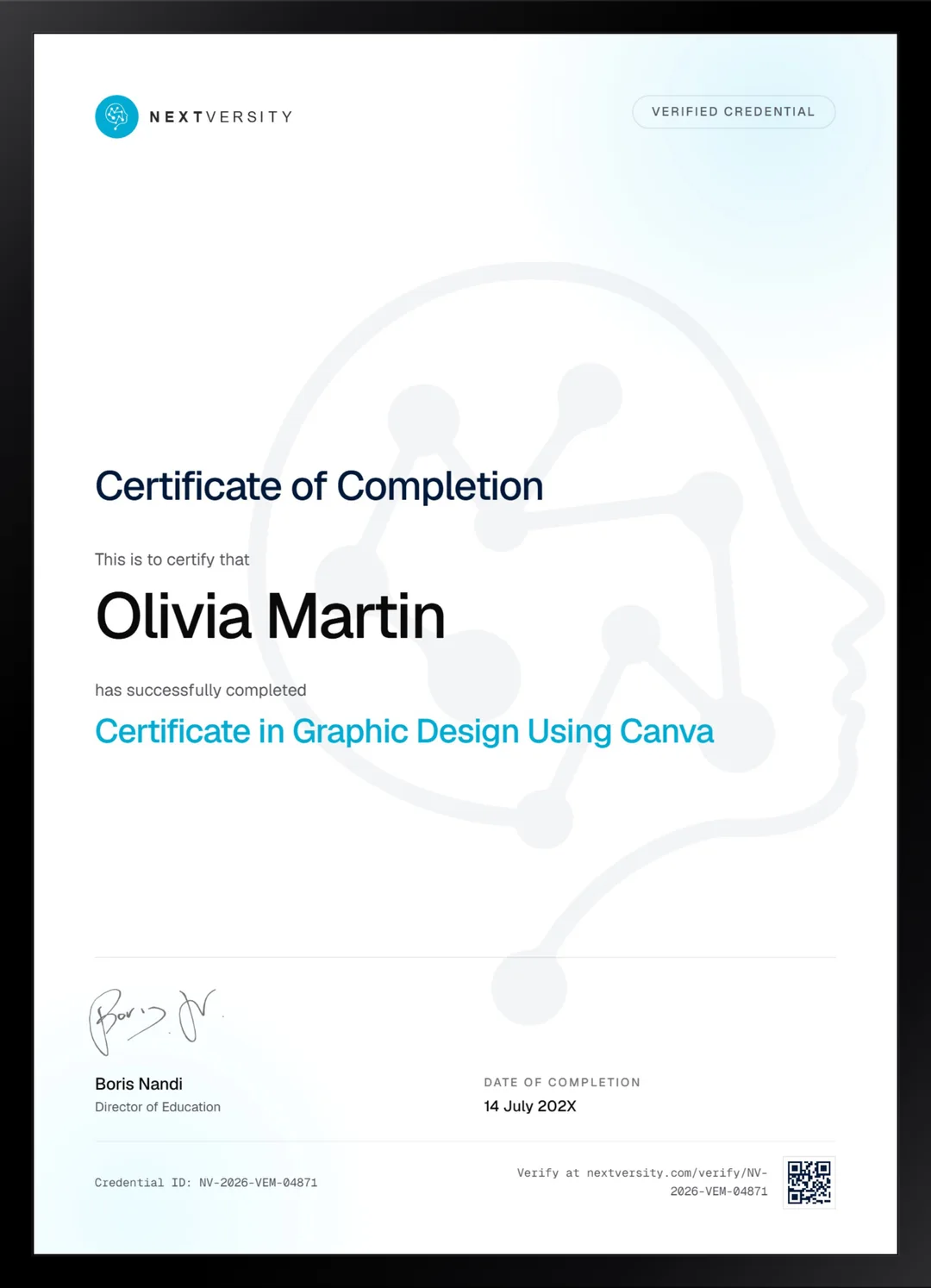
Finish the final module and your Graphic Design Using Canva certificate is issued automatically. Download it, share it with employers and clients, or add it to your resume and LinkedIn.
Where this can take you
Skills from this school show up in roles like these. The certificate proves you finished; the projects you build are what get you hired.
- Graphic designer
- Brand and identity designer
- Social media designer
- Illustrator
- Freelance design contractor
Enroll with confidence
Enroll with confidence
Full details in the refund policy. One subscription covers this course and every other course in all 8 schools.
Pair it with
More from the Graphic Design & Illustration school
 Certificate
Retouching, sky swaps, brand work, mockups and compositing, taught as builds rather than tool tours.
166 lessonsSelf-pacedCertificate
 Certificate
Pen tool, logos, icons, type, patterns, gradient mesh and isometric scenes, built rather than demonstrated.
132 lessonsSelf-pacedCertificate
FAQ
Common questions about the Canva course
Do I need Canva Pro to take this course?
No. The instructor records in Pro and says in the first lesson that the free version follows along fine, with the caveat that some elements may come out watermarked. Nothing here states what either tier includes today, because that changes often enough that any figure written down would be wrong within months. Check Canva for current plans.
Is this Canva course good for complete beginners?
Beginners are exactly who it was built for. It assumes no design training whatsoever, opens on the editor, and teaches hierarchy, spacing, alignment and color before it asks you to make anything serious. If you have only ever picked a template and swapped the text, this is the course that explains why some templates work and others do not.
Does the course cover the Canva AI design tools?
Yes, with a module of its own early on. The focus is briefing: writing a request the tool can actually act on, then editing what comes back rather than accepting the first result. That is the skill that survives whichever way the features change, and it is the difference between output that looks generated and output that looks designed.
Should I learn Canva or Photoshop?
Canva if you need to produce a steady stream of decent material and design is not your job title. Photoshop if you need control over the pixels themselves, or the work starts from a photograph. They are barely competitors: one assembles quickly, the other edits and builds images. Both courses come with one subscription, so it is a question of order.
How long does this Canva course take to finish?
Longer than most people expect, because it is deliberately repetitive across formats. The good news is it is built to be taken a module at a time, and every module ends with something finished. Treat the module as the unit, stop when you have made the thing rather than when the video stops, and it never feels like a march.
Does this give me an official Canva certification?
No, and it is worth being clear about it. The certificate is issued by Nextversity for completing this course, not by Canva. Canva runs its own separate program. What you get here is proof you finished the course plus roughly twenty finished pieces, and in practice the portfolio is what people ask to see.
What will I actually have made by the end?
A stack of finished work rather than notes. Across the format modules you build marketing material, an annual report, a newsletter, a landing page, diagrams, classroom resources, planners, checklists, personalized gifts, social graphics, short video and product mockups. That is a portfolio and a template library you can keep reusing at work.
Free info pack
Not ready to enroll? Start with the guide.
The full curriculum for this course, what you'll build, and how it fits with the rest of the school, in one short guide.