Video Editing & Motion Graphics school
Certificate in Video Editing Using DaVinci Resolve
Edit, grade, mix and deliver in one free application.
This DaVinci Resolve course teaches the cut, the composite, the grade and the mix in one application, taught start to finish on the free edition.
Overview
What this DaVinci Resolve course covers
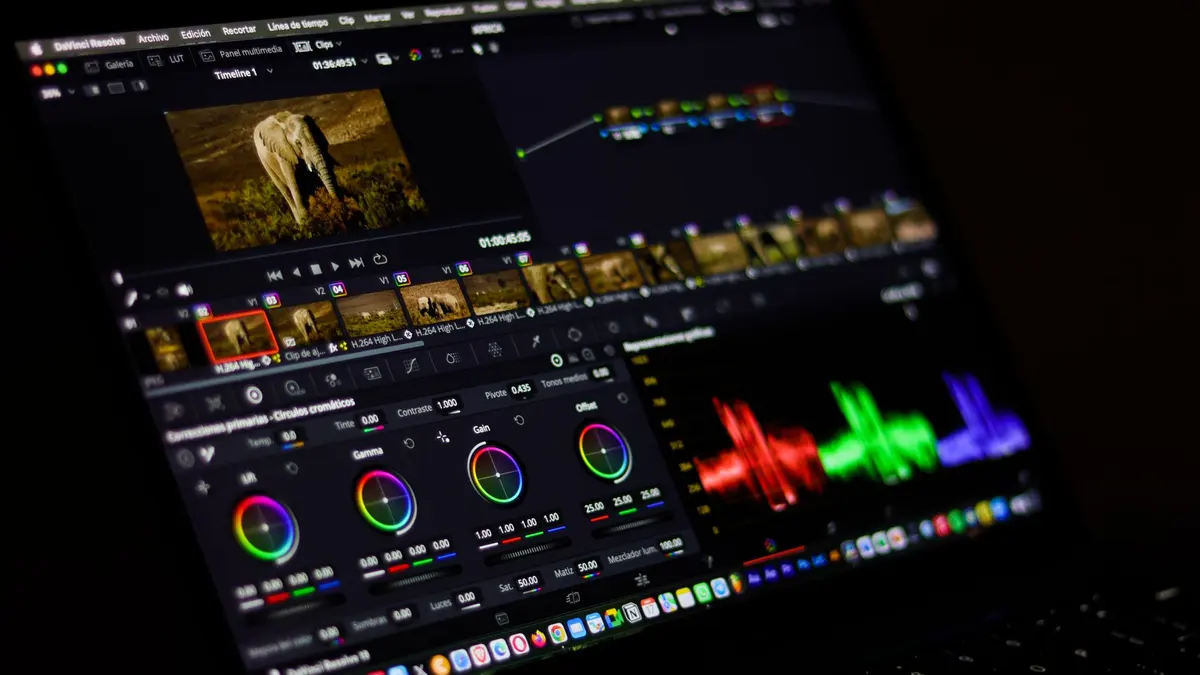
This DaVinci Resolve course teaches editing, compositing, color and audio in one program, and every lesson runs on the free edition. Not a trial and not a crippled build: you download Resolve and work through the whole thing without paying for software at all.
You cover all seven pages in the order a real job uses them, from importing and trimming to Fusion composites and a Fairlight mix, with three modules and thirty lessons on color alone. By the end you can take a folder of raw clips and hand back a finished piece, graded deliberately and mixed so the dialogue sits where it should, exported at settings you chose rather than guessed.
Outcomes
What you will be able to do
Requirements
Course requirements
- DaVinci Resolve, free edition, downloaded from blackmagicdesign.com. The whole course runs on it, so there is nothing to buy.
- No editing experience. The course starts with the project settings that have to be right before you cut anything.
- A computer that meets Blackmagic’s listed requirements, and headphones or speakers good enough to hear what you are fixing in the audio module.
- Ten to fifteen clips of your own. Phone footage is fine, but include three shot in the same place and light, because every grade-matching exercise needs them.
Syllabus
Video Editing Using DaVinci Resolve curriculum
104 recorded video lessons you follow along in the software, at your own pace. Quizzes through each module check what stuck, and a 20-question final exam earns your certificate.
1Course Introduction1 lesson
- Introduction (reading)
2DaVinci Resolve Setup and Interface Fundamentals9 lessons · 9 videos · 3 quizzes
- Downloading DaVinci Resolve (video lesson, 10 minutes 59 seconds)Quiz
- Installing DaVinci Resolve (video lesson, 2 minutes 26 seconds)Quiz
- Introduction to the DaVinci Resolve Interface (video lesson, 5 minutes 54 seconds)
- Understanding the Timeline (video lesson, 4 minutes 54 seconds)
- Understanding Key Interface Icons (video lesson, 3 minutes 25 seconds)
- Using the Project Manager (video lesson, 3 minutes 15 seconds)
- Managing Projects and Project Settings (video lesson, 6 minutes 4 seconds)
- Setting DaVinci Resolve Preferences (video lesson, 4 minutes 23 seconds)
- Configuring Project Settings (video lesson, 7 minutes 41 seconds)Quiz
3Media Page and Editing Interface Fundamentals10 lessons · 10 videos · quiz
- Introduction to the Media Page and Storage Locations (video lesson, 7 minutes 33 seconds)
- Using the Media Pool (video lesson, 13 minutes 15 seconds)
- Managing Audio and Metadata (video lesson, 1 minute 30 seconds)
- Using the Inspector Tool (video lesson, 1 minute 46 seconds)
- Using the Media Page Viewer (video lesson, 1 minute 52 seconds)
- Setting In and Out Points (video lesson, 2 minutes 52 seconds)
- Resetting Effects and Modifications (video lesson, 2 minutes 3 seconds)
- Customizing Media Pool Interface Options (video lesson, 1 minute 54 seconds)
- Capturing Media (video lesson, 16 seconds)
- Scaling the Viewer and Color Marking Clips (video lesson, 5 minutes 42 seconds)Quiz
4Edit Page Workflow and Timeline Editing9 lessons · 9 videos · quiz
- Introduction to the Edit Page Interface (video lesson, 5 minutes 47 seconds)
- Using Linked Selection (video lesson, 4 minutes 48 seconds)
- Using Selection Mode, Blade Edit Mode, Zoom and Markers (video lesson, 4 minutes 43 seconds)
- Importing Video and Audio Separately (video lesson, 1 minute 22 seconds)
- Using Snapping, Insert, Overwrite and Replace Tools (video lesson, 13 minutes 45 seconds)
- Editing Exercise: Syncing Sound with Image (video lesson, 9 minutes 57 seconds)
- Introduction to the Inspector, Effects Library and Keyframes (video lesson, 5 minutes 36 seconds)
- Duplicating Timelines and Creating Audio and Image Fades (video lesson, 7 minutes 14 seconds)
- Using Inspector Keyframes for Composites and Image Transformations (video lesson, 13 minutes 9 seconds)Quiz
5Effects Library, Transitions and Titles9 lessons · 9 videos · quiz
- Introduction to the Effects Library and Video Transitions (video lesson, 12 minutes 37 seconds)
- Adjusting Video Transition Parameters (video lesson, 14 minutes 26 seconds)
- Exploring Toolbox Effects and FX Types (video lesson, 11 minutes 56 seconds)
- Adjusting Effect Parameters and Keyframes (video lesson, 12 minutes 8 seconds)
- Creating Title Sequences (video lesson, 24 minutes 24 seconds)
- Creating Styles with Video Generators (video lesson, 12 minutes 31 seconds)
- Applying Audio Transitions (video lesson, 6 minutes 23 seconds)
- Using Trim Edit Mode (video lesson, 5 minutes 42 seconds)
- Useful Hotkey Controls for the Edit Page (video lesson, 1 minute 29 seconds)Quiz
6Cut Page Editing Workflow6 lessons · 6 videos · quiz
- Introduction to the Cut Page Interface (video lesson, 9 minutes 17 seconds)
- Using the Source Tape, Media Pool Toolbar and Viewer Toolbar (video lesson, 21 minutes 31 seconds)
- Understanding Viewer Elements (video lesson, 8 minutes 15 seconds)
- Using Markers, Playheads, Boring Detector and Fast Export (video lesson, 8 minutes 35 seconds)
- Using Trim Mode, Snapping, Audio Tracks and Text Transitions (video lesson, 8 minutes 4 seconds)
- Synchronising Audio and Video with Inspector Elements (video lesson, 8 minutes 15 seconds)Quiz
7Fusion Compositing and Motion Graphics12 lessons · 12 videos · quiz
- Introduction to the Fusion Interface (video lesson, 2 minutes 25 seconds)
- Understanding Different Types of Nodes (video lesson, 7 minutes 40 seconds)
- Using Fusion Viewers, Media In and Media Out (video lesson, 2 minutes 6 seconds)
- Understanding Node Connections (video lesson, 5 minutes 46 seconds)
- Using Underlays, Merge Nodes and Ellipse Masks (video lesson, 7 minutes 10 seconds)
- Using Background Nodes and the Fusion Inspector (video lesson, 7 minutes 35 seconds)
- Working with Text Nodes (video lesson, 5 minutes 31 seconds)
- Using Fusion Viewers and the Effects Library (video lesson, 6 minutes 45 seconds)
- Animating with Fusion Keyframes (video lesson, 9 minutes 16 seconds)
- Fusion Exercise: Animating a Logo (video lesson, 22 minutes 9 seconds)
- Fusion Exercise: Animating Logo Letters (video lesson, 7 minutes 11 seconds)
- Refreshing Elements in the Fusion Page (video lesson, 5 minutes 44 seconds)Quiz
8Color Page Fundamentals and Primary Correction10 lessons · 10 videos · quiz
- Introduction to the Color Page Interface (video lesson, 8 minutes 53 seconds)
- Using Primary Wheels, Primary Colors and Color Nodes (video lesson, 7 minutes 38 seconds)
- Understanding Color Nodes (video lesson, 2 minutes 1 second)
- First Color Grade and Correction (video lesson, 13 minutes 58 seconds)
- Using Color Nodes and the Color Warper (video lesson, 5 minutes 54 seconds)
- Using Node Types, Shared Nodes and LUTs (video lesson, 3 minutes 41 seconds)
- Matching Clips and Creating Shared Node Styles (video lesson, 7 minutes 29 seconds)
- Creating Looks with Color Grading and Masks (video lesson, 9 minutes 25 seconds)
- Using Nodes, Grab Stills and Blur (video lesson, 7 minutes 42 seconds)
- Creating Color Tracking Masks (video lesson, 6 minutes 21 seconds)Quiz
9Advanced Color Tools and Creative Correction10 lessons · 10 videos · quiz
- Introduction to Advanced Color Tools (video lesson, 3 minutes 14 seconds)
- Introduction to Curves and Qualifiers (video lesson, 10 minutes 56 seconds)
- Using Qualifiers and Masks (video lesson, 5 minutes 41 seconds)
- Exercise: Changing the Color of an On-Screen Element (video lesson, 12 minutes 15 seconds)
- Exercise: Improving an Image (video lesson, 15 minutes 6 seconds)
- Reviewing Node Types and Color Grading Basics (video lesson, 4 minutes 59 seconds)
- Exercise: Turning a Daylight Clip into a Night Scene (video lesson, 21 minutes 55 seconds)
- Working with Color Presets (video lesson, 3 minutes 11 seconds)
- Using Color Presets Effectively (video lesson, 13 minutes 23 seconds)
- Color Page Review (video lesson, 8 minutes 8 seconds)Quiz
10LUTs, Looks and Advanced Color Workflows10 lessons · 10 videos · quiz
- Working with 4K Footage and Multiple Projects (video lesson, 7 minutes 45 seconds)
- Exercise: Improving Lighting and Skin Tones (video lesson, 30 minutes 7 seconds)
- Exercise: Creating a Color Look (video lesson, 5 minutes 44 seconds)
- Understanding LUTs (video lesson, 9 minutes 25 seconds)
- Exercise: Creating a Film Look with LUTs (video lesson, 16 minutes 14 seconds)
- Creating and Exporting LUTs (video lesson, 6 minutes 44 seconds)
- Downloading and Importing LUTs (video lesson, 8 minutes 26 seconds)
- Adjusting LUTs with the Node Key Tool (video lesson, 2 minutes 23 seconds)
- Mixing LUTs with Nodes and the Color Warper (video lesson, 12 minutes 50 seconds)
- Color Page Summary (video lesson, 5 minutes 49 seconds)Quiz
11Fairlight Audio Editing and Mixing11 lessons · 11 videos · quiz
- Introduction to the Fairlight Interface (video lesson, 1 minute 5 seconds)
- Using Mixers and Meters (video lesson, 4 minutes 55 seconds)
- Editing Audio Tracks (video lesson, 5 minutes 3 seconds)
- Exploring Additional Fairlight Interface Elements (video lesson, 2 minutes 49 seconds)
- Understanding Mixer Basics (video lesson, 11 minutes 27 seconds)
- Mixing Audio Levels and Creating a Radio EQ Effect (video lesson, 6 minutes 8 seconds)
- Mixing with the Pan Tool (video lesson, 3 minutes 23 seconds)
- Improving Dialogue with EQ and Dynamics (video lesson, 4 minutes 30 seconds)
- Applying Audio Effects (video lesson, 7 minutes 58 seconds)
- Recording with an Audio Interface in DaVinci Resolve (video lesson, 4 minutes 43 seconds)
- Creating Stereo Audio from Two Mono Tracks (video lesson, 4 minutes 38 seconds)Quiz
12Exporting, Rendering and Social Media Delivery8 lessons · 8 videos
- Configuring Render Settings and Saving Presets (video lesson, 3 minutes 11 seconds)
- Exporting Timelines from the Deliver Page (video lesson, 3 minutes 33 seconds)
- Exporting Audio-Only and Video-Only Files (video lesson, 1 minute 55 seconds)
- Exporting Low-File-Size Videos (video lesson, 6 minutes 1 second)
- Exporting for Social Media by Changing Project Settings (video lesson, 9 minutes 13 seconds)
- Exporting for Social Media by Converting Formats (video lesson, 6 minutes 36 seconds)
- Creating Videos for Instagram Formats (video lesson, 7 minutes 23 seconds)
- Sending Exports Directly to Social Media Platforms (video lesson, 2 minutes 11 seconds)
Certificate
Earn a certificate you can show
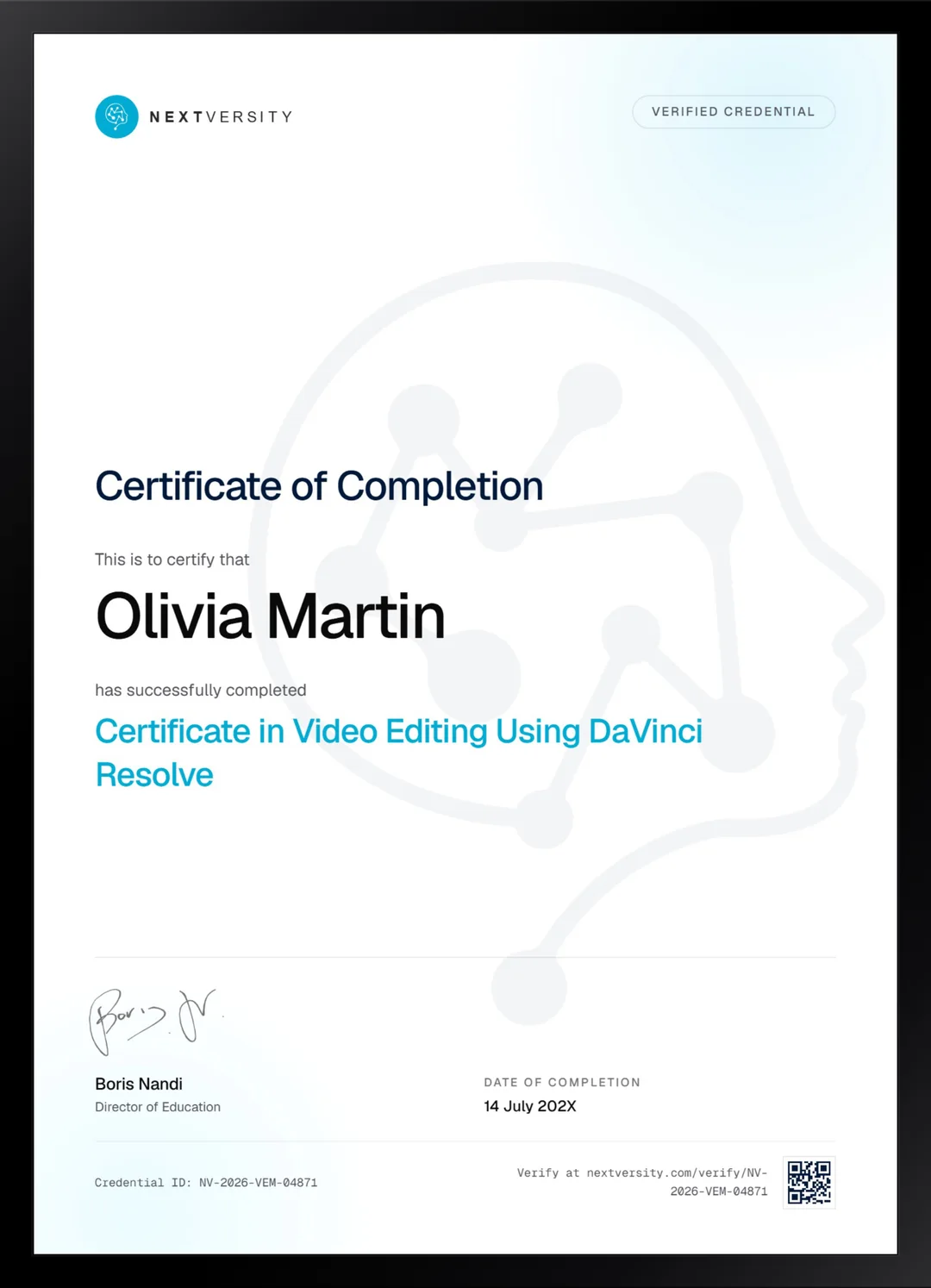
Finish the final module and your Video Editing Using DaVinci Resolve certificate is issued automatically. Download it, share it with employers and clients, or add it to your resume and LinkedIn.
Where this can take you
Skills from this school show up in roles like these. The certificate proves you finished; the projects you build are what get you hired.
- Video editor
- Motion graphics designer
- Content editor for YouTube and social
- Post-production assistant
Enroll with confidence
Enroll with confidence
Full details in the refund policy. One subscription covers this course and every other course in all 8 schools.
Pair it with
More from the Video Editing & Motion Graphics school
 Certificate
From your first import to green screen, color grading and a finished mix, with a certificate at the end.
171 lessonsSelf-pacedCertificate
 Certificate
Keyframes and shape morphs, then character rigging, 3D cameras, tracking, keying and energy effects.
213 lessonsSelf-pacedCertificate
FAQ
Common questions about the DaVinci Resolve course
Is DaVinci Resolve really free, and is the free version enough?
Yes to both, and it is the best argument for starting here. The free edition comes straight from Blackmagic, it is not a trial and it does not expire, and every lesson in this course is taught on it. The paid Studio edition adds noise reduction, lens correction, stabilization and some codecs. None of that is needed to finish the course.
Is DaVinci Resolve good for a complete beginner?
Yes, and no editing background is assumed. The course opens with the project manager and the settings that have to be right before you cut a single clip, which is exactly where beginners usually go wrong and never find out why. If you already edit elsewhere, the application is new but the thinking transfers immediately.
How much color grading does the DaVinci Resolve course cover?
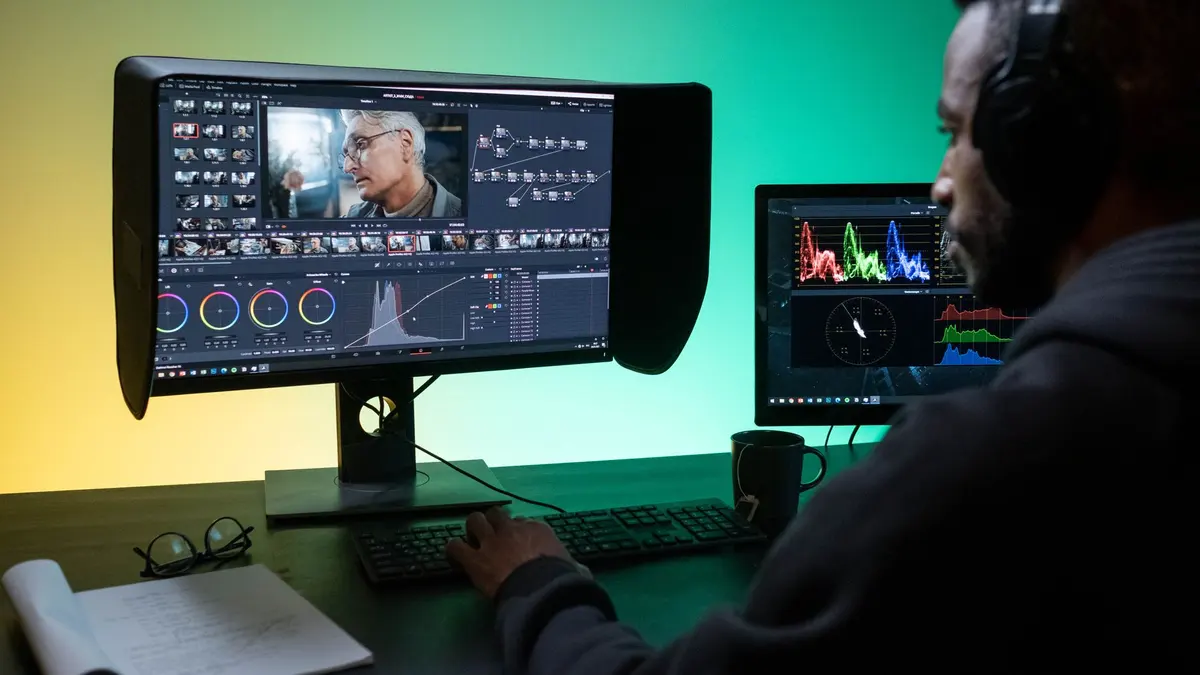
Three modules and thirty lessons, which is the reason most people choose Resolve. Primary correction comes first, then qualifiers, windows and tracking to isolate any part of an image, then looks, LUTs and node structure so your grade is repeatable across a whole project rather than rebuilt shot by shot.
How long does the DaVinci Resolve course take to finish?
The video runs about eleven and a half hours, which is the easy number. Doing the work in Resolve instead of watching it done roughly triples that, so budget 25 to 30 hours in total. At six lessons a week you are through in a couple of months, and nothing expires if you take longer.
Do I need my own footage to follow the Resolve lessons?
Yes, and the shape of it matters more than the quality. Ten to fifteen clips is plenty and phone footage is completely fine. Include at least three shot in the same location and lighting, because every matching and grading exercise needs shots from one scene, and at least one with somebody speaking for the audio module.
Should I learn DaVinci Resolve or Premiere Pro?
Resolve if cost matters or grading is the draw, since the free edition is genuinely professional and this entire course runs on it. Premiere Pro if your clients, your workplace or your collaborators pass projects around in it, because a project file does not travel between the two. Both courses are in the same subscription, so it is really a question of order.
Will I get a certificate for DaVinci Resolve at the end?
Yes. Finish every lesson, pass the final exam, and the certificate is issued automatically with a verification code and a public link anyone can check against the site. Download it as a PDF, put it on LinkedIn, or send it to a client. It stays valid whether or not you keep your subscription running.
Free info pack
Not ready to enroll? Start with the guide.
The full curriculum for this course, what you'll build, and how it fits with the rest of the school, in one short guide.