
Business & Productivity school
Certificate in Microsoft PowerPoint
Past the default template, into decks that communicate.
The longest PowerPoint course in this school, and most of it lives in the gap between a slide that contains information and a slide that actually communicates.
Overview
What this PowerPoint course covers
Most decks look like the default template with somebody words dropped into it. This PowerPoint course spends its entire length on the difference, and it is the longest course in this school for exactly that reason. If your slides work but nobody remembers them, this is the fix.
Craft comes first: templates, shapes, charts, six lessons on editing photographs without leaving the program, and trigger buttons that fire on a click. Then judgment, with styles built side by side and a lesson on accessible design that most presentations fail outright. The bigger builds close it: kiosk decks that run themselves, data storytelling, animated video, template design as a visual language, and art made entirely out of slide shapes. It ends on delivery, voice and the room itself.
Outcomes
What you will be able to do
Requirements
Course requirements
- PowerPoint on a computer. There is a good chance work or school already provides it, and the second lesson covers every route to getting it.
- No design training. The course teaches the judgment alongside the buttons.
- A mouse if you have one, because a lot of this course is dragging small things into position.
- One real presentation with a real audience. Build that deck here rather than a practice one.
Syllabus
Microsoft PowerPoint curriculum
108 recorded video lessons you follow along in the software, at your own pace. Quizzes through each module check what stuck, and a 20-question final exam earns your certificate.
1PowerPoint Course Orientation and Setup4 lessons · 3 videos · 2 quizzes
- Welcome (reading)
- Introduction to Microsoft PowerPoint (video lesson, 8 minutes 23 seconds)Quiz
- Downloading and Accessing PowerPoint (video lesson, 10 minutes 31 seconds)
- PowerPoint Interface Overview (video lesson, 23 minutes 3 seconds)Quiz
2PowerPoint Design Fundamentals7 lessons · 7 videos · 4 quizzes
- Choosing a Presentation Template (video lesson, 26 minutes 10 seconds)Quiz
- Creating Objects in PowerPoint (video lesson, 22 minutes 20 seconds)
- Customizing Objects (video lesson, 10 minutes 12 seconds)Quiz
- Organizing Objects on Slides (video lesson, 11 minutes 8 seconds)
- Formatting Text (video lesson, 31 minutes 58 seconds)
- Inserting Media into Presentations (video lesson, 19 minutes 52 seconds)Quiz
- Creating Charts in PowerPoint (video lesson, 4 minutes 22 seconds)Quiz
3Slide Animation and Visual Flow4 lessons · 4 videos · 2 quizzes
- Designing Presentation Templates (video lesson, 8 minutes 43 seconds)Quiz
- Creating Presentation Content (video lesson, 24 minutes 32 seconds)
- Designing Advanced Content with Figures and Graphs (video lesson, 14 minutes 47 seconds)
- Applying Transitions and Animations (video lesson, 14 minutes 28 seconds)Quiz
4Advanced PowerPoint Design Techniques11 lessons · 11 videos · 4 quizzes
- Advanced Photo Editing: Image Corrections (video lesson, 15 minutes 51 seconds)Quiz
- Advanced Photo Editing: Color Adjustments (video lesson, 10 minutes 22 seconds)
- Advanced Photo Editing: Image Adjustments (video lesson, 3 minutes 46 seconds)
- Advanced Photo Editing: Picture Styles (video lesson, 8 minutes 44 seconds)
- Advanced Photo Editing: Arranging and Resizing Images (video lesson, 9 minutes 49 seconds)Quiz
- Advanced Photo Editing: Removing Backgrounds (video lesson, 11 minutes 30 seconds)
- Advanced Text Formatting (video lesson, 15 minutes 52 seconds)
- Advanced Object Formatting (video lesson, 34 minutes 1 second)
- Creating Multiple Animations (video lesson, 34 minutes 35 seconds)
- Creating Trigger Button Animations (video lesson, 36 minutes 51 seconds)Quiz
- Using PowerPoint as a Design Tool (video lesson, 46 minutes 51 seconds)Quiz
5Presentation Design and Content Best Practice4 lessons · 4 videos · 2 quizzes
- Text Design and Formatting Etiquette (video lesson, 35 minutes 22 seconds)
- Color Coordination for Presentations (video lesson, 28 minutes 51 seconds)
- Using Media Effectively in Presentations (video lesson, 25 minutes 32 seconds)Quiz
- Using Motion and Animation Without Distraction (video lesson, 23 minutes 19 seconds)Quiz
6PowerPoint Features and Workflow Tools4 lessons · 4 videos · 2 quizzes
- Editing Tools and Clipboard Workflow (video lesson, 14 minutes 31 seconds)
- Running a Slideshow (video lesson, 10 minutes 18 seconds)Quiz
- Recording, Reviewing and Viewing Presentations (video lesson, 26 minutes 56 seconds)
- PowerPoint Shortcuts and Additional Options (video lesson, 10 minutes 30 seconds)Quiz
7Practical Presentation Design Projects6 lessons · 6 videos · 2 quizzes
- Casual Presentation Project: Template Selection and Design (video lesson, 16 minutes 29 seconds)
- Casual Presentation Project: Content Creation (video lesson, 60 minutes 12 seconds)
- Casual Presentation Project: Transitions and Animations (video lesson, 23 minutes 25 seconds)Quiz
- Professional Presentation Project: Template Selection and Design (video lesson, 13 minutes 55 seconds)
- Professional Presentation Project: Content Creation (video lesson, 78 minutes 38 seconds)
- Professional Presentation Project: Transitions and Animations (video lesson, 31 minutes 38 seconds)Quiz
8UX Principles for Presentation Design5 lessons · 5 videos · 2 quizzes
- UX Principles for Presentations (video lesson, 15 minutes 48 seconds)
- Designing with Purpose (video lesson, 12 minutes 43 seconds)
- Designing for Audience Engagement (video lesson, 14 minutes 11 seconds)
- Designing Usable Presentations (video lesson, 7 minutes 28 seconds)Quiz
- Storytelling Through Presentation Design (video lesson, 16 minutes 12 seconds)Quiz
9Interactive and Engaging Presentation Design6 lessons · 6 videos · 2 quizzes
- Using Kahoot for Audience Engagement (video lesson, 29 minutes 28 seconds)Quiz
- Using Mentimeter for Audience Engagement (video lesson, 19 minutes 45 seconds)
- Creating Engaging Presentation Questions (video lesson, 23 minutes 2 seconds)
- Creating Interactive Slides, Buttons and Logic (video lesson, 57 minutes 10 seconds)
- Using Animation for Coherent Storytelling (video lesson, 41 minutes 48 seconds)
- Creating Background Animations (video lesson, 28 minutes 42 seconds)Quiz
10Presentation Design Styles4 lessons · 4 videos · 2 quizzes
- Creating Classical Presentation Designs (video lesson, 18 minutes 56 seconds)
- Creating Minimalist Presentation Designs (video lesson, 20 minutes 35 seconds)Quiz
- Creating Balanced Presentation Designs (video lesson, 7 minutes 3 seconds)
- Creating Fun and Engaging Presentation Designs (video lesson, 19 minutes 33 seconds)Quiz
11Accessible Presentation Design1 lesson · 1 video · quiz
- Designing Accessible PowerPoint Presentations (video lesson, 28 minutes 7 seconds)Quiz
12Presentation Delivery and Audience Communication3 lessons · 3 videos · quiz
- Building Content Flow and Fluency (video lesson, 23 minutes 35 seconds)
- Building Confidence and Presentation Inspiration (video lesson, 28 minutes 43 seconds)
- Improving Audience Engagement (video lesson, 21 minutes 46 seconds)Quiz
13UX-Based Slideshow Practice Project4 lessons · 4 videos · 2 quizzes
- Creating Content for a UX-Based Slideshow (video lesson, 50 minutes 28 seconds)
- Designing Interactive Slideshow Elements (video lesson, 15 minutes 43 seconds)
- Creating Slideshow Animations (video lesson, 48 minutes 58 seconds)Quiz
- Applying Storytelling Design to Slideshows (video lesson, 19 minutes 12 seconds)Quiz
14Interactive Kiosk Presentation Design6 lessons · 6 videos · 2 quizzes
- Creating a Presentation Carousel (video lesson, 21 minutes 18 seconds)
- Creating a Presentation Carousel with an Alternative Method (video lesson, 14 minutes 55 seconds)
- Designing a Kiosk Interface (video lesson, 22 minutes 16 seconds)
- Connecting Interactive Buttons (video lesson, 15 minutes 7 seconds)
- Creating an Interactive Quiz (video lesson, 9 minutes 9 seconds)Quiz
- Designing an Alternative Kiosk Interface (video lesson, 17 minutes 27 seconds)Quiz
15Business Presentation Design and Data Storytelling8 lessons · 8 videos · 2 quizzes
- Editing Business Presentation Templates (video lesson, 15 minutes 57 seconds)
- Creating Business Presentation Content (video lesson, 15 minutes 20 seconds)
- Creating Engagement Interaction 1: Scrolling (video lesson, 25 minutes 39 seconds)
- Creating Engagement Interaction 2: Slide (video lesson, 10 minutes 57 seconds)
- Creating Engagement Interaction 3: Forum (video lesson, 12 minutes 12 seconds)Quiz
- Creating Additional Business Presentation Content (video lesson, 10 minutes 24 seconds)
- Presenting Data with Charts and Graphs (video lesson, 11 minutes 3 seconds)
- Maintaining a Clear Presentation Storyline (video lesson, 19 minutes 24 seconds)Quiz
16Background Presentation and Supporting Slide Design4 lessons · 4 videos · 2 quizzes
- Tailoring Presentation Content (video lesson, 10 minutes 32 seconds)
- Creating Free-Floating Animations (video lesson, 28 minutes)
- Applying Final Slide Additions (video lesson, 16 minutes 50 seconds)Quiz
- Creating Break Time and Thank You Slides (video lesson, 14 minutes 44 seconds)Quiz
17Animated Video Creation in PowerPoint5 lessons · 4 videos · quiz
- Creating Simple Animated Videos (video lesson, 91 minutes 25 seconds)
- Creating Complex Animated Videos (reading)
- Creating Annotated Animated Videos (video lesson, 96 minutes 47 seconds)
- Creating Speech-Based Annotated Animated Videos (video lesson, 78 minutes 59 seconds)
- Recording and Exporting Animated Videos (video lesson, 12 minutes 48 seconds)Quiz
18Simple Presentation Template Design5 lessons · 5 videos · 2 quizzes
- Planning a Simple Visual Language (video lesson, 19 minutes 22 seconds)
- Designing Illustration-Based Visuals (video lesson, 38 minutes 50 seconds)
- Designing Icon-Based Visuals (video lesson, 9 minutes 38 seconds)Quiz
- Organizing a Simple Presentation Template (video lesson, 39 minutes 39 seconds)
- Creating Template Content (video lesson, 45 minutes 53 seconds)Quiz
19Complex Presentation Template Design5 lessons · 5 videos · 2 quizzes
- Planning a Complex Visual Language (video lesson, 13 minutes)
- Choosing Colors for Complex Templates (video lesson, 18 minutes 41 seconds)
- Designing Background Visuals (video lesson, 29 minutes 41 seconds)Quiz
- Designing Character Visuals (video lesson, 47 minutes 14 seconds)
- Organizing a Complex Presentation Template (video lesson, 43 minutes 2 seconds)Quiz
20Digital Art Creation in PowerPoint3 lessons · 3 videos · quiz
- Creating Vector Art in PowerPoint (video lesson, 46 minutes 18 seconds)
- Creating Pixel Art in PowerPoint (video lesson, 38 minutes 57 seconds)
- Creating 3D Art in PowerPoint (video lesson, 44 minutes 53 seconds)Quiz
21File Management, Protection and Templates3 lessons · 3 videos · 2 quizzes
- Understanding PowerPoint File Types (video lesson, 12 minutes 4 seconds)
- Applying File Protection Settings (video lesson, 11 minutes 16 seconds)Quiz
- Setting Up a PowerPoint Template (video lesson, 23 minutes 12 seconds)Quiz
22AI-Assisted PowerPoint Design and Content Creation5 lessons · 5 videos · quiz
- Introduction to AI Tools and Prompting (video lesson, 14 minutes 36 seconds)
- Conducting Presentation Research with Gemini (video lesson, 9 minutes 57 seconds)
- Creating Slide Content with Copilot (video lesson, 19 minutes 25 seconds)
- Generating Images for Presentations with ChatGPT (video lesson, 16 minutes 9 seconds)
- Exploring Additional AI Features with Grok (video lesson, 22 minutes 29 seconds)Quiz
23Presentation Skills and Delivery3 lessons · 3 videos · quiz
- Introduction to the Art of Presenting (video lesson, 20 minutes 2 seconds)Quiz
- Using Body Language When Presenting (video lesson, 36 minutes 15 seconds)
- Using Voice and Intonation Effectively (video lesson, 19 minutes 55 seconds)
Certificate
Earn a certificate you can show
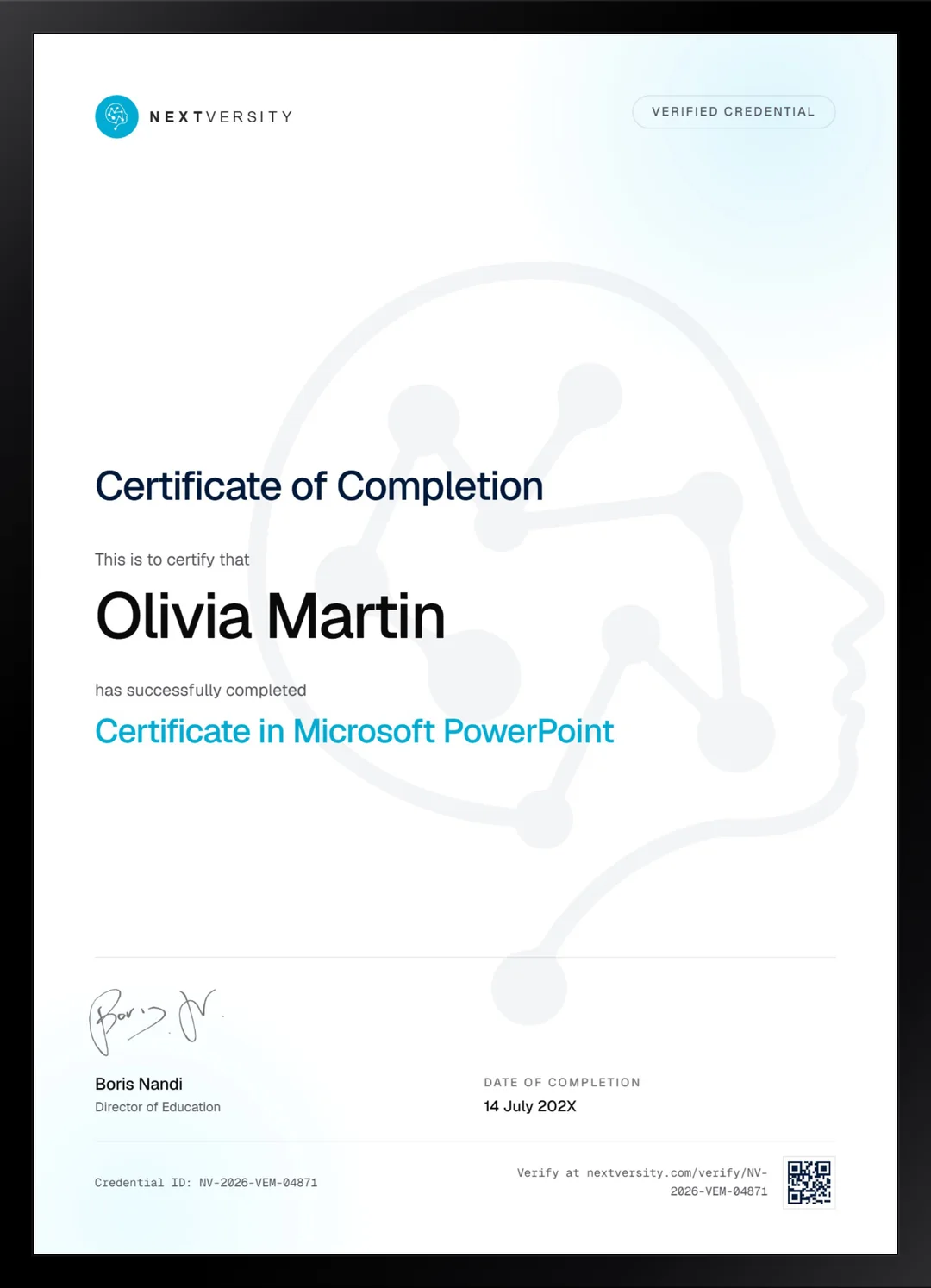
Finish the final module and your Microsoft PowerPoint certificate is issued automatically. Download it, share it with employers and clients, or add it to your resume and LinkedIn.
Where this can take you
Skills from this school show up in roles like these. The certificate proves you finished; the projects you build are what get you hired.
- Operations coordinator
- Project coordinator
- Data and reporting analyst
- Executive assistant
- Freelancer on Fiverr or Upwork
Enroll with confidence
Enroll with confidence
Full details in the refund policy. One subscription covers this course and every other course in all 8 schools.
Pair it with
More from the Business & Productivity school
 Certificate
Research, outline, slide content and images with AI, then a deck you assemble and fix in PowerPoint.
19 lessonsSelf-pacedCertificate
 Certificate
Formulas, lookups and PivotTables, then charts, dashboards and maps, built in your own workbook.
125 lessonsSelf-pacedCertificate
FAQ
Common questions about the PowerPoint course
Is a PowerPoint course worth it if I already use PowerPoint?
Probably, unless you already design well. Most people who open PowerPoint daily have never met trigger button animations, kiosk builds, the accessibility checker or template planning, and have never been told why their slides feel flat. The tool is familiar. The craft on top of it usually is not, and that is what this course teaches.
How long is this PowerPoint course?
It is the longest in this school, across 23 modules. Budget roughly 25 to 35 hours if you build along rather than watch. The good news is it is genuinely modular: the first five modules plus the delivery module will make your next deck noticeably better on their own, and the bigger builds can wait.
Does the course cover animation and transitions?
Yes, across several modules rather than one. Transitions and basic animation arrive early, then multiple animations and trigger buttons in the advanced module, then a whole module on animated video made inside PowerPoint. The consistent theme is animating to carry meaning rather than to decorate, which is what separates polish from noise.
Is there a PowerPoint certification at the end?
There is a Nextversity certificate, which is not the same thing as a Microsoft credential and does not pretend to be. Microsoft runs its own separate exams. Each module ends with a quiz at a 75% pass mark, and a twenty-question final exam issues the certificate with a verification code anyone can check.
Can I use PowerPoint for design work and video?
Four modules of this course do exactly that, and the results are genuinely good. Two cover template design as a visual language, one makes vector, pixel and 3D art entirely out of slide shapes, and one builds animated video that gets recorded and exported. It is the most underrated design tool most offices already have installed.
What is a kiosk presentation, and why a whole module?
It is a deck that runs itself and responds to clicks, the kind you see on a trade stand or a reception screen. It earns a module because it is a genuinely different discipline: a stranger has to be able to get out of any state they can get into, which forces you to think about navigation rather than sequence.
Which version of PowerPoint do I need?
Any recent one, on a computer rather than a phone. The lessons are recorded in PowerPoint for Windows, so Mac users should expect the ribbon to sit differently and some buttons to be renamed. Nothing taught here depends on a specific release, and where a feature is version-sensitive the lesson says so.
Free info pack
Not ready to enroll? Start with the guide.
The full curriculum for this course, what you'll build, and how it fits with the rest of the school, in one short guide.