Video Editing & Motion Graphics school
Certificate in Video Editing Using Filmora
The fastest way from never edited to finishing videos.
This Filmora course gets you finishing real videos in week one, then keeps going through green screen, grading, audio design and fifty-one effect builds.
Overview
What this Filmora course covers
Filmora is the gentlest desktop editor to start on, and this Filmora course is built around that advantage. About a third covers the interface and the tools one at a time: crop and stabilization, keyframes, speed ramping, green screen keying, color match and grading, motion tracking and a full audio set.
The rest is building. Five projects end to end, including a sports promo planned, cut to a beat and mixed, then a closing module of fifty-one effect recipes covering clone shots, portals, levitation and weather. You finish able to turn your own clips into a stabilized, graded, properly mixed video with an effect in it that makes somebody ask how you did that.
Outcomes
What you will be able to do
Requirements
Course requirements
- Filmora installed on the computer you will actually work on. Any recent version is fine.
- No editing experience. The first module starts at the home screen and assumes nothing.
- An internet connection while you edit, because the built-in stock, template and audio libraries download on demand.
- A handful of your own clips, or the built-in stock library, which several of the effect builds use directly.
Syllabus
Video Editing Using Filmora curriculum
110 recorded video lessons you follow along in the software, at your own pace. Quizzes through each module check what stuck, and a 20-question final exam earns your certificate.
1Filmora Course Orientation and Video Editing Foundations9 lessons · 8 videos · quiz
- Course Overview and Learning Expectations (reading)
- Opening Filmora and Starting a Project (video lesson, 3 minutes 53 seconds)
- Filmora Interface Overview Part 1 (video lesson, 18 minutes 26 seconds)
- Filmora Interface Overview Part 2 (video lesson, 16 minutes 3 seconds)
- Getting Started with Filmora (video lesson, 11 minutes 32 seconds)
- Understanding Video Editing (video lesson, 15 minutes 18 seconds)
- Introduction to Audio Design (video lesson, 14 minutes 38 seconds)
- Introduction to Color Correction and Color Grading (video lesson, 14 minutes 58 seconds)
- Using Color to Create Mood (video lesson, 19 minutes 17 seconds)Quiz
2Filmora Tools and Editing Workflow17 lessons · 17 videos · quiz
- Filmora Basic Tools Part 1 (video lesson, 15 minutes 13 seconds)
- Filmora Basic Tools Part 2 (video lesson, 15 minutes 27 seconds)
- Using Filmora Smart Features (video lesson, 8 minutes 1 second)
- Using Filmora Auto Features (video lesson, 9 minutes 15 seconds)
- Creating Titles in Filmora (video lesson, 15 minutes 46 seconds)
- Using Keyframes Part 1 (video lesson, 12 minutes 50 seconds)
- Using Keyframes Part 2 (video lesson, 17 minutes 51 seconds)
- Adjusting Uniform Speed (video lesson, 12 minutes 52 seconds)
- Creating Speed Ramps (video lesson, 14 minutes 21 seconds)
- Working with Green Screens (video lesson, 16 minutes 52 seconds)
- Using Color Match (video lesson, 6 minutes 30 seconds)
- Color Correction in Filmora (video lesson, 14 minutes 59 seconds)
- Color Grading in Filmora (video lesson, 8 minutes 48 seconds)
- Motion Tracking Part 1 (video lesson, 14 minutes 38 seconds)
- Motion Tracking Part 2 (video lesson, 12 minutes 32 seconds)
- Audio Editing Part 1 (video lesson, 20 minutes 34 seconds)
- Audio Editing Part 2 (video lesson, 18 minutes 13 seconds)Quiz
3Practical Video Editing Projects11 lessons · 11 videos · quiz
- Creating Text Reveal Effects Part 1 (video lesson, 17 minutes 16 seconds)
- Creating Text Reveal Effects Part 2 (video lesson, 14 minutes 48 seconds)
- Applying Audio Design Techniques (video lesson, 15 minutes 29 seconds)
- Working with Actions and Elements Part 1 (video lesson, 14 minutes 22 seconds)
- Working with Actions and Elements Part 2 (video lesson, 15 minutes 32 seconds)
- Working with Actions and Elements Part 3 (video lesson, 12 minutes 51 seconds)
- Working with Actions and Elements Part 4 (video lesson, 16 minutes 18 seconds)
- Creating a Sports Promo Part 1 (video lesson, 18 minutes 24 seconds)
- Creating a Sports Promo Part 2 (video lesson, 17 minutes 30 seconds)
- Creating a Sports Promo Part 3 (video lesson, 3 minutes 36 seconds)
- Project Completion and Review (video lesson, 2 minutes 9 seconds)Quiz
4Additional Filmora Tools and Mac Workflows12 lessons · 12 videos · quiz
- Using Wondershare Drive (video lesson, 15 minutes 10 seconds)
- Working with Proxies (video lesson, 11 minutes 42 seconds)
- Creating with AI Stylizer (video lesson, 17 minutes 37 seconds)
- Recording Your Desktop Screen (video lesson, 16 minutes 55 seconds)
- Recording from a Webcam (video lesson, 16 minutes 42 seconds)
- Recording Voiceovers (video lesson, 16 minutes 33 seconds)
- Using Scene Detection (video lesson, 10 minutes 38 seconds)
- Detaching Audio from Video (video lesson, 13 minutes 32 seconds)
- Syncing Audio (video lesson, 16 minutes 11 seconds)
- Using AI Portrait (video lesson, 16 minutes 40 seconds)
- Using Auto Ripple and Group Editing (video lesson, 15 minutes 2 seconds)
- Editing Action Camera Videos (video lesson, 18 minutes 55 seconds)Quiz
5Filmora 12 Features and Workflow Updates12 lessons · 12 videos · quiz
- Filmora 12 Interface and Layout (video lesson, 4 minutes 13 seconds)
- Using Keyframes in Filmora 12 (video lesson, 6 minutes 1 second)
- Exploring New Filmora 12 Features (video lesson, 11 minutes 17 seconds)
- Using Smart Cutout (video lesson, 6 minutes 31 seconds)
- Using Masking Tools (video lesson, 5 minutes 34 seconds)
- Working with Adjustment Layers (video lesson, 4 minutes 8 seconds)
- Creating 3D Titles (video lesson, 3 minutes 24 seconds)
- Using Audio Stretch (video lesson, 2 minutes 36 seconds)
- Audio Panel Overview Part 1 (video lesson, 8 minutes 26 seconds)
- Audio Panel Overview Part 2 (video lesson, 6 minutes 44 seconds)
- Using AI Copywriting (video lesson, 3 minutes 40 seconds)
- Customizing the Filmora 12 Workspace (video lesson, 5 minutes 14 seconds)Quiz
6Special Effects and Creative Video Techniques50 lessons · 50 videos
- Creating a Red Eye Effect (video lesson, 8 minutes 22 seconds)
- Creating a Meme Face Effect (video lesson, 8 minutes 20 seconds)
- Creating a Green Screen Meme Effect (video lesson, 8 minutes 42 seconds)
- Creating a Superhero Effect (video lesson, 9 minutes 28 seconds)
- Creating a Cloning Effect (video lesson, 8 minutes 40 seconds)
- Creating an Anime-Inspired God Speed Effect Part 1 (video lesson, 9 minutes 32 seconds)
- Creating an Anime-Inspired Super Punch Effect (video lesson, 9 minutes 31 seconds)
- Creating a Super Speed Dash Effect (video lesson, 9 minutes 33 seconds)
- Creating an Anime VFX Video (video lesson, 9 minutes 38 seconds)
- Creating Real-Life Anime Effects (video lesson, 9 minutes 37 seconds)
- Creating a Flicker Effect (video lesson, 9 minutes 20 seconds)
- Creating an Anime-Inspired God Speed Effect Part 2 (video lesson, 9 minutes 35 seconds)
- Creating a Game-Style Character Selection Screen (video lesson, 9 minutes 28 seconds)
- Placing Characters into Anime-Style Worlds (video lesson, 9 minutes 29 seconds)
- Creating an Anime Fight Scene (video lesson, 9 minutes 37 seconds)
- Creating Lighting Scene Effects (video lesson, 9 minutes 20 seconds)
- Creating a Background Afterimage Effect (video lesson, 8 minutes 43 seconds)
- Creating Clothing Color Change Effects (video lesson, 9 minutes 48 seconds)
- Creating Special Effects for Music Videos (video lesson, 9 minutes 28 seconds)
- Creating Digital Video Effects for Music Videos (video lesson, 9 minutes 34 seconds)
- Recreating a Fast-Cut Music Video Effect (video lesson, 9 minutes 37 seconds)
- Creating Magic-Inspired Movie Effects (video lesson, 9 minutes 28 seconds)
- Creating Hollywood-Style Visual Effects (video lesson, 9 minutes 38 seconds)
- Creating a Rain Stop Effect (video lesson, 9 minutes 33 seconds)
- Creating an Underwater Room Effect (video lesson, 8 minutes 17 seconds)
- Creating Looping and Mirror Dive Effects (video lesson, 8 minutes 13 seconds)
- Creating a Roto Dance Transition (video lesson, 8 minutes 20 seconds)
- Creating an Egg Crack Effect (video lesson, 7 minutes 55 seconds)
- Creating a Hang-Up Effect (video lesson, 8 minutes 19 seconds)
- Recreating a Home Alone-Inspired Effect (video lesson, 8 minutes 24 seconds)
- Creating an Endless Objects Effect (video lesson, 8 minutes 18 seconds)
- Creating a Levitation Effect (video lesson, 8 minutes 17 seconds)
- Creating a Floating Object Effect (video lesson, 9 minutes 11 seconds)
- Creating an Instant Snack Effect (video lesson, 9 minutes 13 seconds)
- Creating an Endless Product Effect (video lesson, 9 minutes 37 seconds)
- Creating a Hand-Through-the-Screen Effect (video lesson, 9 minutes 38 seconds)
- Creating a Fruit Ninja-Inspired Effect (video lesson, 9 minutes 35 seconds)
- Creating a Night-to-Day Effect (video lesson, 9 minutes 29 seconds)
- Creating Black Flash Effects (video lesson, 9 minutes 35 seconds)
- Creating Gaussian Blur and Bright Flash Effects (video lesson, 9 minutes 34 seconds)
- Creating Bullet Sync Effects (video lesson, 8 minutes 13 seconds)
- Creating a Bounce Effect (video lesson, 8 minutes 25 seconds)
- Creating Smooth Slow Motion for Gaming Montages (video lesson, 9 minutes 33 seconds)
- Creating a Magic Portal Effect (video lesson, 8 minutes 5 seconds)
- Creating Tech Screen and Fire Arena Effects (video lesson, 9 minutes 16 seconds)
- Creating a Magic Door Effect (video lesson, 9 minutes 13 seconds)
- Creating a Music Video Clone Effect with Magic Mask (video lesson, 8 minutes 20 seconds)
- Creating a Multiple Hands Illusion (video lesson, 8 minutes 12 seconds)
- Creating Sports Video Effects (video lesson, 8 minutes 43 seconds)
- Creating Sports Game Action Effects (video lesson, 8 minutes 19 seconds)
Certificate
Earn a certificate you can show
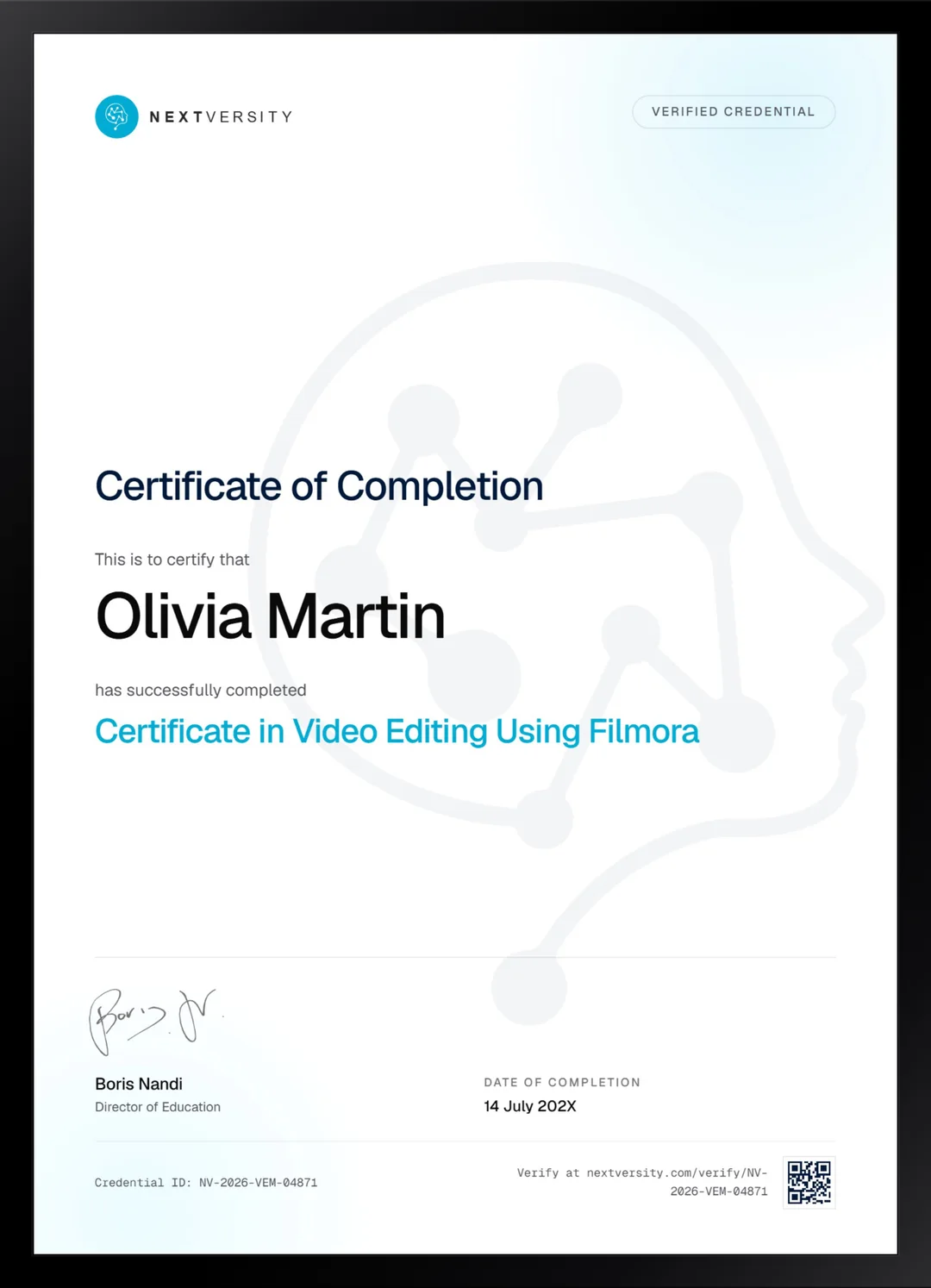
Finish the final module and your Video Editing Using Filmora certificate is issued automatically. Download it, share it with employers and clients, or add it to your resume and LinkedIn.
Where this can take you
Skills from this school show up in roles like these. The certificate proves you finished; the projects you build are what get you hired.
- Video editor
- Motion graphics designer
- Content editor for YouTube and social
- Post-production assistant
Enroll with confidence
Enroll with confidence
Full details in the refund policy. One subscription covers this course and every other course in all 8 schools.
Pair it with
More from the Video Editing & Motion Graphics school
 Certificate
Desktop and phone, keyframes, keying, grading and the AI tools, ending in three portfolio pieces.
72 lessonsSelf-pacedCertificate
 Certificate
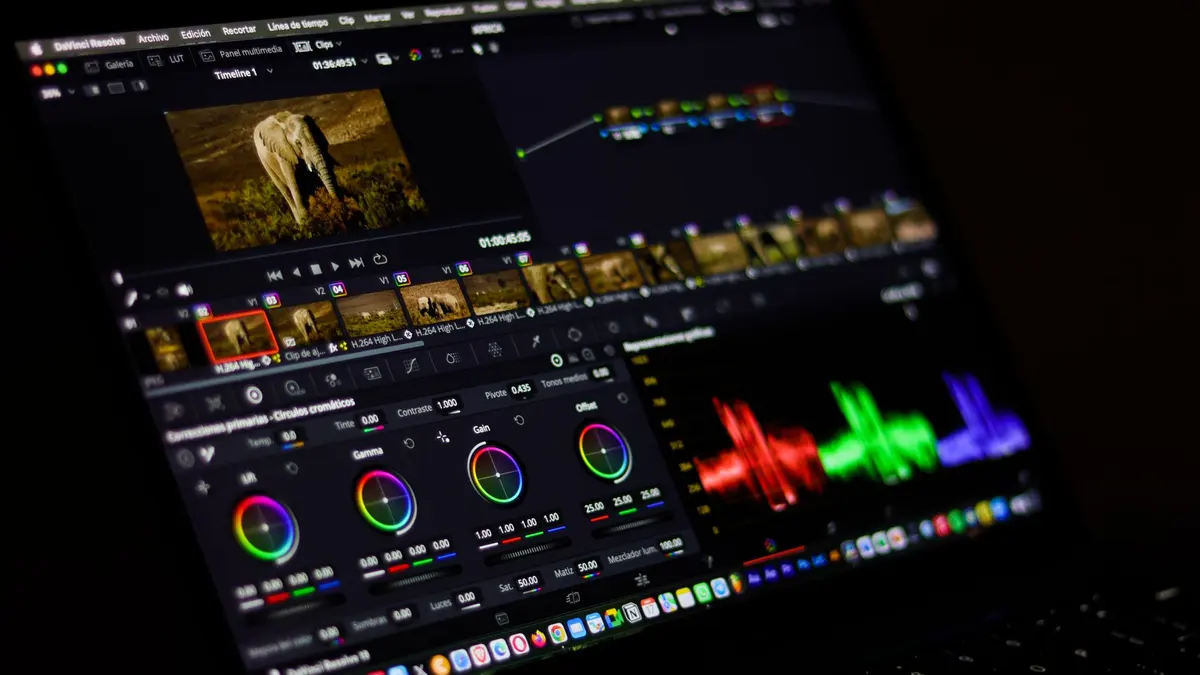
All seven Resolve pages on the free edition, with three modules of grading and a Fairlight mix.
105 lessonsSelf-pacedCertificate
FAQ
Common questions about the Filmora course
Is Filmora good for someone who has never edited before?
It is probably the gentlest desktop editor to start on, and this course assumes no experience whatsoever. The first module covers the interface, the asset libraries and how to tell a paid asset from a free one before you build something around it. You will export a finished video long before you understand every panel, which is the right order.
Do I need to pay for anything besides Filmora itself?
No. You need Filmora and nothing else. Two lessons demonstrate paid third-party plugin packs, and both show a free alternative in the same lesson, so nothing in this course is gated behind an extra purchase. The built-in stock and audio libraries cover the material the builds need.
Is Filmora better than CapCut for editing?
It depends entirely on what you make. Filmora is a desktop editor with real depth in color, audio and compositing, and it never touches phone editing. CapCut is built for short vertical video and will have you posting sooner. If your work lives on a timeline rather than a phone, Filmora is the better home, and both courses come with the same subscription.
Does the Filmora course cover green screen and color grading?
Both, and properly. Green screen keying gets its own lessons, with the emphasis on making two shots read as one place rather than two stuck together. Color runs as match, then correction, then grading, in that order, and you finish by saving a correction you can reuse across a whole project instead of rebuilding it per clip.
How long does the Filmora course take to finish?
Roughly twenty hours of video, and longer if you build alongside it, which is the version that actually teaches you anything. The tools module is the one to budget for. The effects module at the end is a reference library rather than a queue, so treat reaching it as finishing rather than the last stretch of a march.
Can I use Filmora to make YouTube videos?
Yes, and the course is shaped for it. You build five things end to end, including a sports promo planned, cut to a beat and mixed, plus text reveals and a cinematic five-track audio build on a single clip. Those are the exact skills a watchable channel runs on, and the export module covers getting the file right.
Is a certificate included with the Filmora course?
Yes, and it comes from the final exam rather than from watching. Module quizzes sit at a 75% pass mark and none of them block you from moving on. Once every lesson and quiz is done the exam opens, and passing it issues a certificate with a verification code you can put straight on LinkedIn.
Free info pack
Not ready to enroll? Start with the guide.
The full curriculum for this course, what you'll build, and how it fits with the rest of the school, in one short guide.